Import raw attendance
BC Time enables users to import raw attendance data quickly and efficiently. This is particularly useful when attendance records from a previous clocking system needs to be brought into BC Time during a new implementation, or when large volumes of manually captured attendance must be loaded without entering each record individually, day by day.
The import process supports bulk attendance entries at once. Users download the BC Time import template, populate it with the relevant clocked entries and their corresponding clock states, then upload the completed template back into BC Time for processing.
The below steps provide a guide on how to efficiently handle this process.
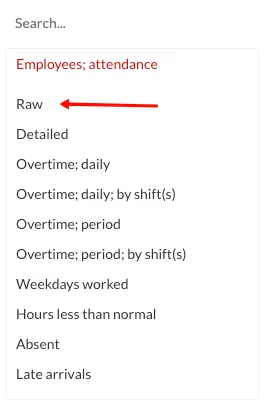
Step 1: Under the "Report" tab in BC Time, navigate to the "Raw" menu under "Employees; attendance" and click on it.
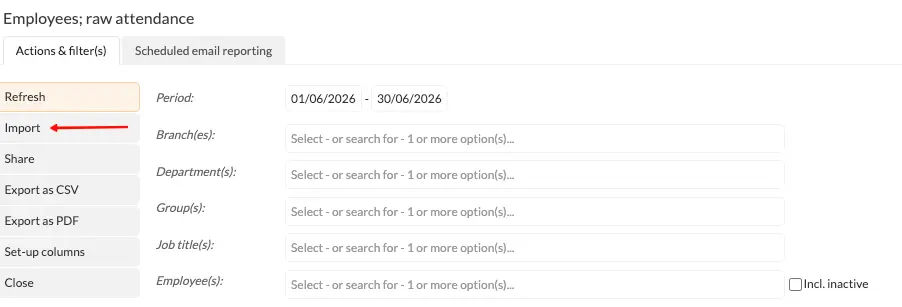
Step 2: Once selected the below menu will appear with various actions and filters. Click the import option in the actions menu.
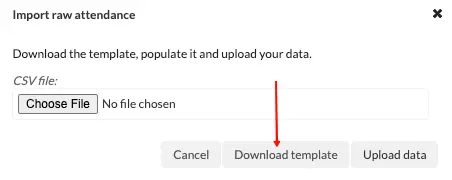
Step 3: The below pop up window will appear. with the option to download the import template. Click "Download template".
Step 4: Navigate to your download location and open the template sheet, which will open with the headings as described below.
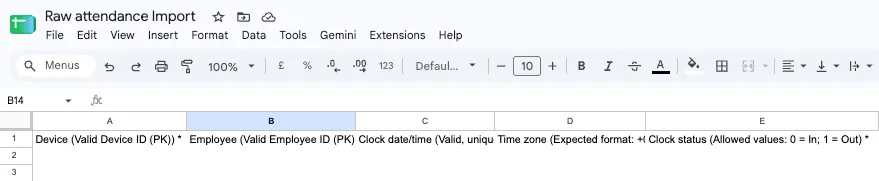
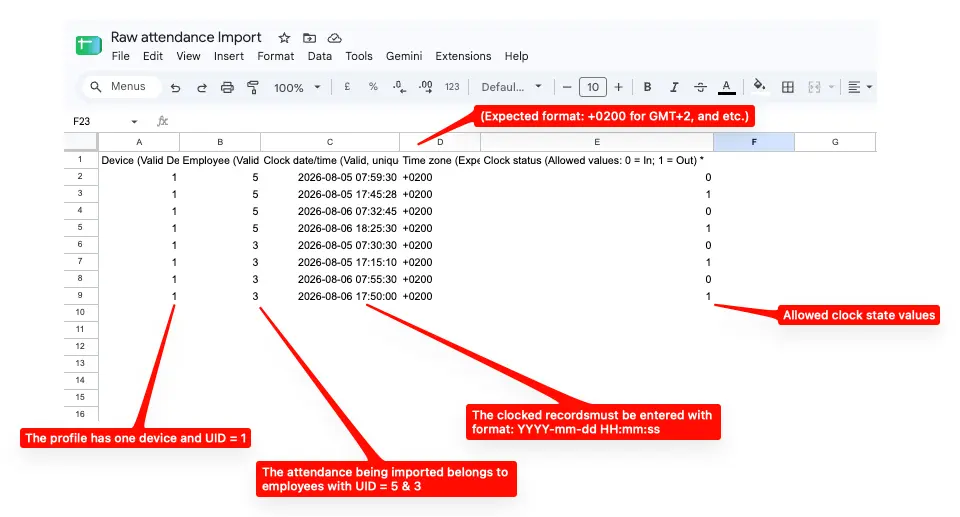
Device (Valid Device ID (PK)) * | This will be the device UID to which the attendance should be linked. If you are unsure as to what the device UID is, Navigate to your “devices” in BC Time and download the list of devices as a csv. Open the downloaded list and the UID’s will be listed next to each device. |
Employee (Valid Employee ID (PK)) * | This will be the employee UID. If you are unsure as to what the employee UID is, Navigate to your “employees” in BC Time and download the list of employees as a csv. Open the downloaded list and the UID’s will be listed next to each employee. |
Time zone (Expected format: +0200 for GMT+2, and etc.) | (Expected format: +0200 for GMT+2, and etc.) |
Clock status * | (Allowed values: 0 = In; 1 = Out) |
Step 5: Proceed to upload the raw attendance entries onto the templates sheet as shown in the example below:
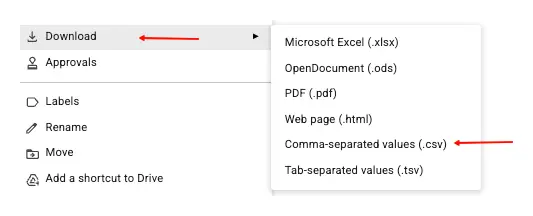
Step 6: Once the sheet is ready for import. Proceed to download the sheet as a csv. file.
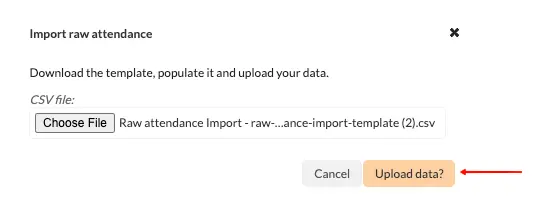
Step 7: Having downloaded the sheet, proceed to upload the template in BC Time. Choose file and click upload data.
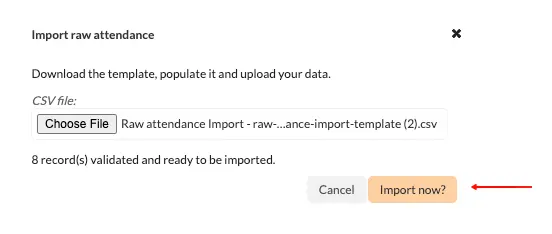
Step 8: Once upload is confirmed, BC Time will validate the records, and return any errors (if any are found) or validate the records as indicated below. Click "Import now".
Step 9: Once upload is successful, the records will be displayed in the Raw attendance report.
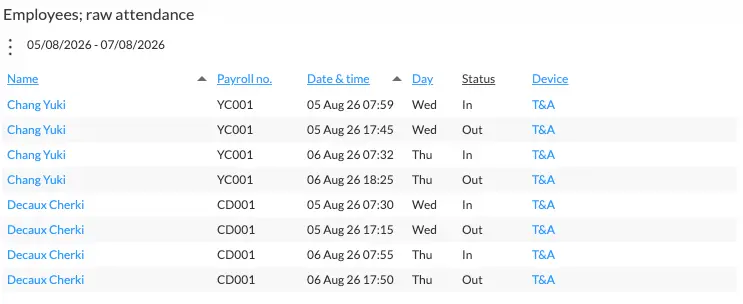
It is important to note that imported attendance will not be populated to the detailed and overtime reports until recalculated.
Please consult a BC Time consultant to assist with the recalculation of imported attendance records.
There are no comments for now.
to be the first to leave a comment.