Import employees
BC Time includes an import function that allows users to upload employees into the system at once.
This functionality under employees improves on the traditional method of onboarding employees individually into BC Time by offering a template that can be populated with all the required fields needed for new employees.
This article guides the user on the steps required to successfully action an import of employees.
Step 1: Navigate the manage tab under the "Employees" menu.
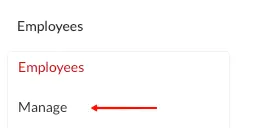
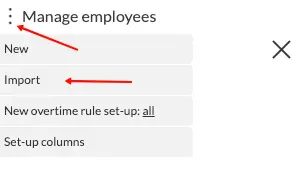
Step 2: Once in manage, click the vertical ellipses (⋮) to access the import view. Click on import.
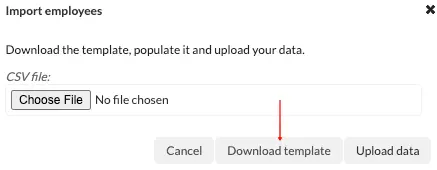
Step 3: The below pop up window will appear, where the user can download the import template. Click Download template.
Step 4: Once downloaded, open the template and upload the data as per the specified columns. The fields marked with an asterisk (*) are compulsory and must be completed for the template to pass validation.

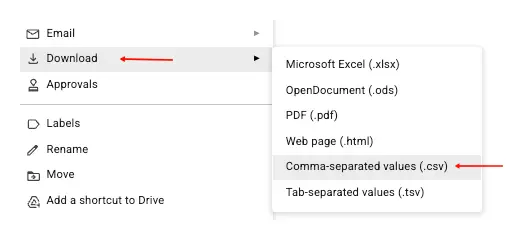
Step 5: Having populated the template, proceed to download the template as a csv. file.
Step 6: Upload the downloaded template, by clicking on "Choose File" to link the template. Proceed to upload data.
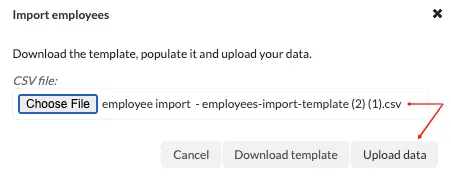
Step 7: Once data is uploaded, BC Time will proceed to validated the records in the template and confirm successful validation as indicated below. Proceed to "import now".
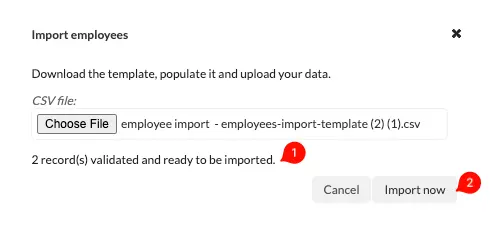
Step 8: Once imported, the employees will be created in BC Time as shown in the image below.

There are no comments for now.