Exceptions: Add short hours to normal
Setting the short hours exception in the overtime rules
BC Time now includes an Exceptions field that enables users to define a maximum threshold for adding short hours to Normal time.
With this new functionality, users can set a specific limit, ensuring that any minutes or hours falling below the defined threshold are automatically added to Normal time. This provides greater flexibility and accuracy in handling minor shortfalls, improving overall time management and payroll consistency, when so required.
The exception is configurable in overtime rules within the day groups that the user seeks the exception to apply to.
Step 1: Navigate to overtime rules under the employees tab.
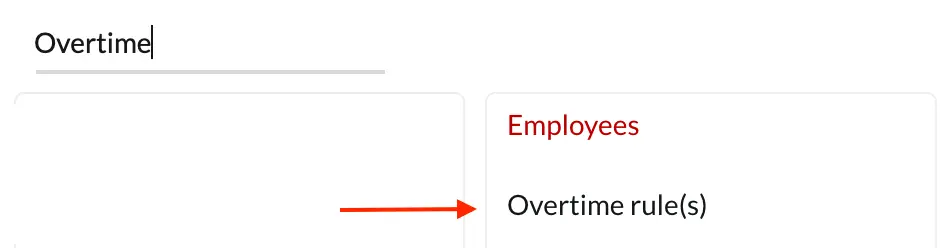
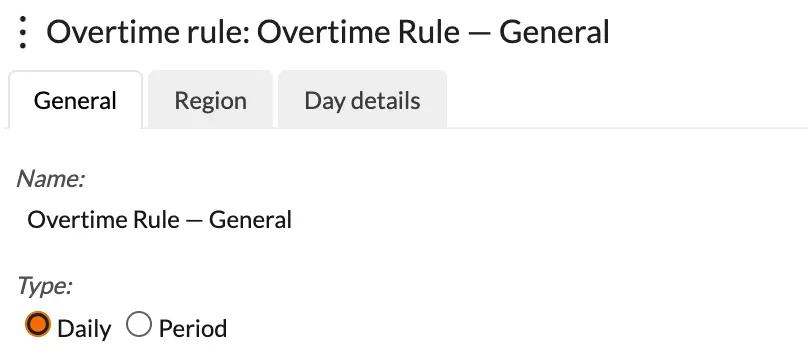
Step 2: Select the overtime rule on which you would like to enable the exception.

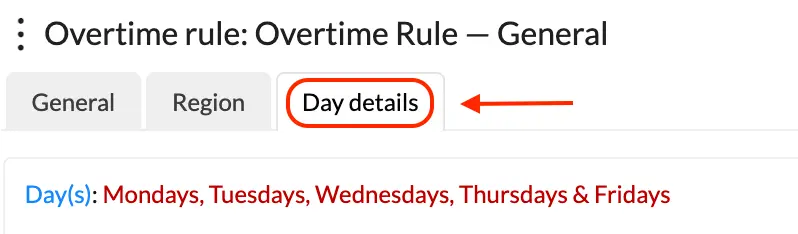
Step 3: Once selected, navigate to Day details. Note that the exception is only available for the daily rule setup.
Step 4: Click on Day details to enter the day groups menu.
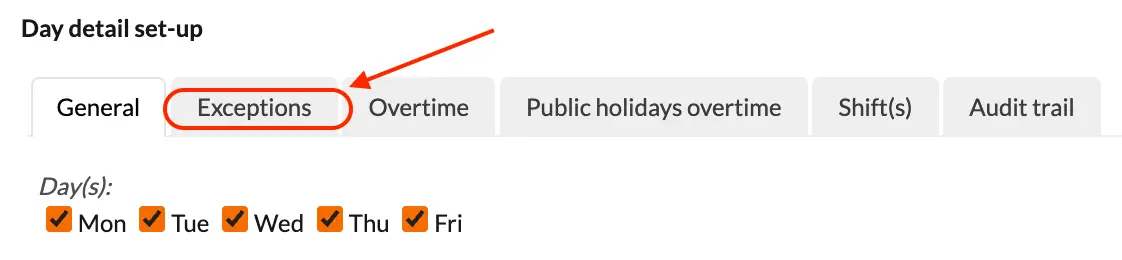
Step 5: Under Day details set-up, navigate to exceptions.
Step 6: Once in the exceptions, the user will see the "Add short hours to normal" option with a "Max number of short hours" field. The user should then specify the maximum number of hours or minutes in decimal that they would like to add to Normal. In the example below, a maximum of 0.25 (15 minutes) has been set. This means if the employee(s) have 15 minutes short or less — these will be added to normal.
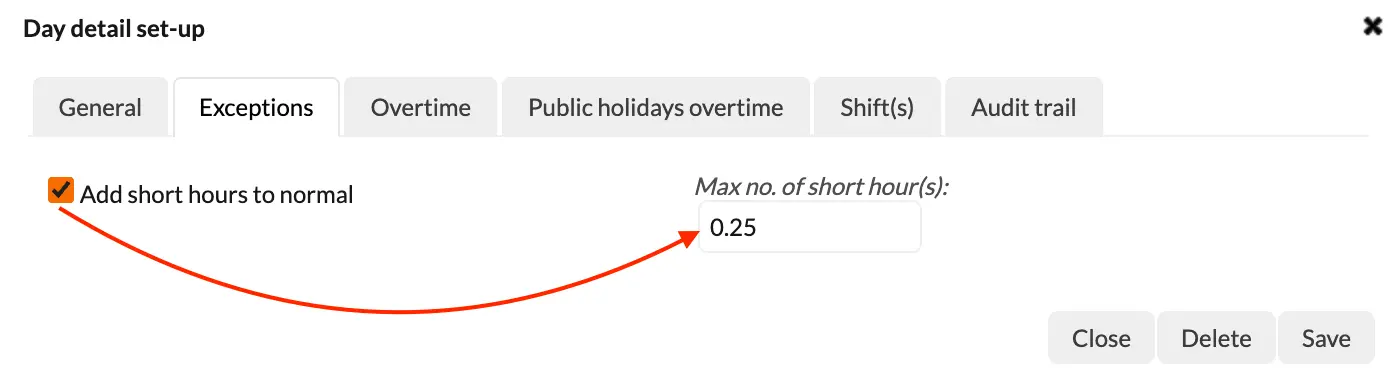
Step 7: The employee in the example below has 10 minutes short before setting the exception.

Step 8 : Having set the maximum number of short hours — these minutes as indicated in the screenshot below have now been added to normal hours in the N column.

There are no comments for now.