Mobile Attendance Self Service
Mobile Attendance — Self service
Mobile attendance empowers employees to clock in and out for their shifts independently through a feature known as self-service clocking. Initiated from BC Time, this functionality gives employees the flexibility to record their attendance via the BC Time mobile app, WhatsApp, or a mobile web browser.
Once the self-service API and device have been set up in BC Time, an introductory message to one or more employees can be sent to them — provided their WhatsApp number is linked to their BC Time employee profile. Employees will receive this message directly in WhatsApp from Binary City Time, welcoming them to the BC Time Self-Service platform and getting them set up to start clocking straight away.
Create your self service device
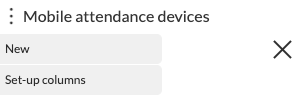
Navigate to the Mobile attendance devices menu in BC Time. Once in the menu, click the vertical meatballs to access the below window to create a new self service device.
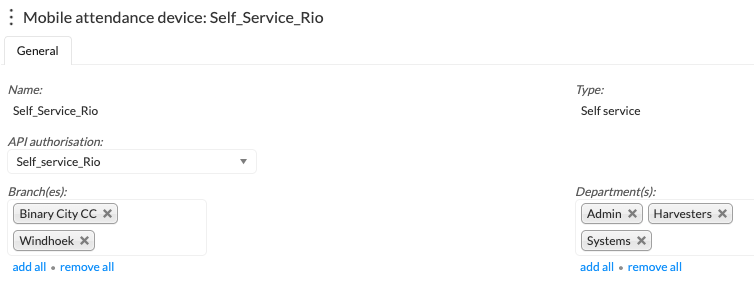
The below window will open. Give your device a name, select the type "Self service", link your created API and the required branches and departments for the employees who will be using the self service clocking platform.
Sending out an introductory message
From your mobile self service device created in BC Time, the BC Time user will access the “Send introductory message” window by clicking the meatballs menu. The introductory message will be sent to all employees linked to the branch(es) and department(s) as linked to this self service device.

Send introductory message | Send a new message to a newly linked employee |
Resend introductory message | Resent the introductory message to employees to whom an introductory message was already sent but for whatever reason may not have received it |
Delete | Delete the self service device |
Back | Go back to the previous window. |
Clicking on “Send introductory message” a pop window will appear stating that the message will be sent to the employees of the linked branches and departments. Click continue twice to confirm this action. This message will be sent to their whatsapp with instructions to activate their mobile device.

Once successfully sent, the below message will be received in whatsapp.

Activate WhatsApp Device for Clocking
To clock in via whatsapp (not mobile app), the employee should proceed to “Activate WhatsApp Device”. Your selection will be confirmed, and a new message will be sent, indicating that “You’re all set” and your Whatsapp device has been activated.

Click on "Start clocking", to get started. The below window will pop up to confirm the BC Time profile on which the employee will be clocking. In our example below, the profile name is “T&V Rio Test Profile”. Your profile will be your company. Click the company name and send.

Your company profile will be confirmed and a new message will be sent back with the two available clocking states: Clock in and Clock out.

The employee is now ready to start clocking via whatsapp. Select the clocking state, Clock in at the start of your shift and Clock out at the end of your shift. BC Time self service will return a message confirming your selected state and the time which the state was clock as per the time on your device.

In our example above, the employee selected the clock in state. In order to access the clock out state at the end of your shift, simply “Continue clocking”. You’ll be prompted to confirm and send your profile and the clocking states will be displayed again for selection.

Activate Mobile Device for Clocking (The APP)
To clock via the BC Time mobile application, the employee should proceed to “Activate Mobile Device”.
The below message will be sent back, confirming that the employee has started the mobile device activation process and should follow the link option provided. Click “Follow Link”.

The employee will be directed to the time-v2.bcity.me page and requested to open the link in the system browser. Follow the on screen instructions; Tap the meatballs menu and “Open in Browser".

The employee will be redirected to the time-v2.bcity.me page above, with a six digit code sent to whatsapp as shown below. Punch in the code and continue to the web application.


Once successfully logged into the web application, the employee will be prompted to “Open Mobile App” — click Open App to be redirected to the Binary City Time: Mobile Attendance app.

Confirm your selection in the below screen — click “Open”.