Import departments
BC Time includes an import feature that allows users to load multiple departments into the system at once. Once imported, departments become available for selection and can be linked to employee profiles.
Since these are required when creating employee records in BC Time, the import option provides a faster and more efficient alternative when managing a large number of departments. Rather than adding each individually, users can import them in bulk, reducing administrative effort and helping ensure employee setup is completed smoothly.
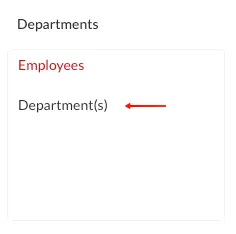
Step 1: Navigate to the departments menu in BC Time.
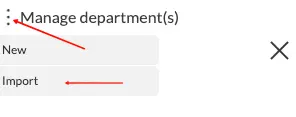
Step 2: Once in the departments view, click the vertical ellipses (⋮) to access the import option — click on "import".
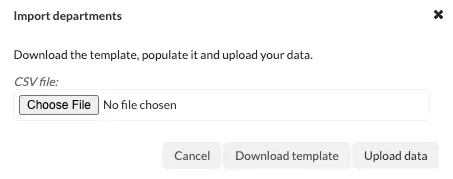
Step 3: The below window will appear allowing the user to download the import template.
Step 4: Populate the template with your unique departments as per the below example.
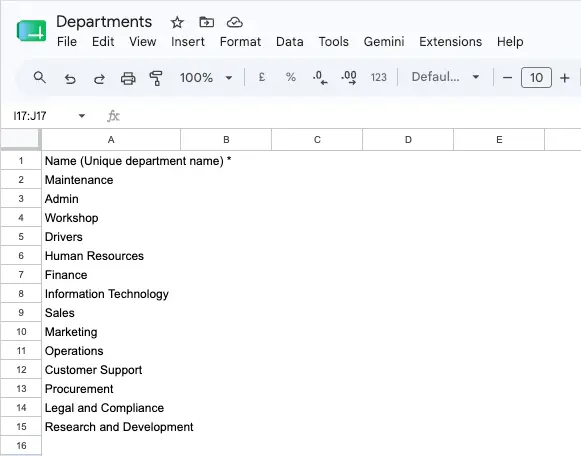
Step 5: Download the populated template as a csv. file
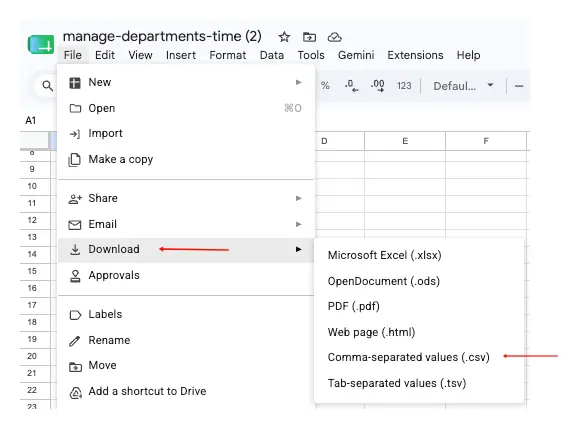
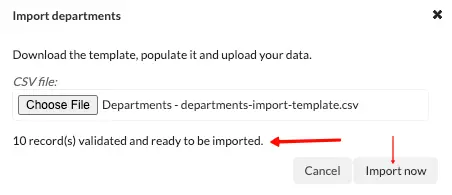
Step 6: Once downloaded, proceed to upload the csv. file by choosing the template file, ensuring that only the required data is in the template. BC Time will proceed to validate the records in the template, and if no validation errors are found — the message " # record(s) validated and ready to be imported" will be displayed. Proceed to "import now".
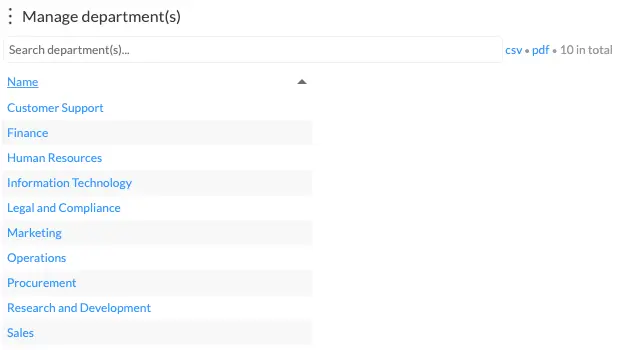
Step 7: Once successfully imported, the departments will be visible in BC Time.
There are no comments for now.