Enrollment via the BC Time Enrollment Application
This article guides clients on managing employee-template enrollment for clients using HIK terminals. The enrollment is initiated via the enrollment application installed by a Binary City consultant on a clients windows computer and enrollment of either facial or fingerprint template is completed on the device.
Required installation files are retrievable via our level up download link: Enrollment Application Download link. (step actioned by Binary City consultant).
Once the enrollment app is installed and authenticated with the BC Time profile, the user should be able to log into the application using their BC Time credentials.
User guide
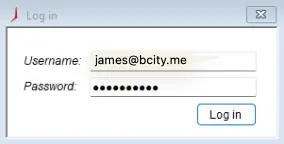
Step 1: Enter your BC Time login credentials to access the application.
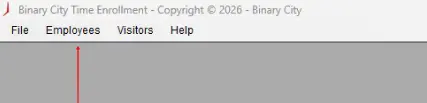
Step 2: Once logged in, select the employees tab to access the employees view.
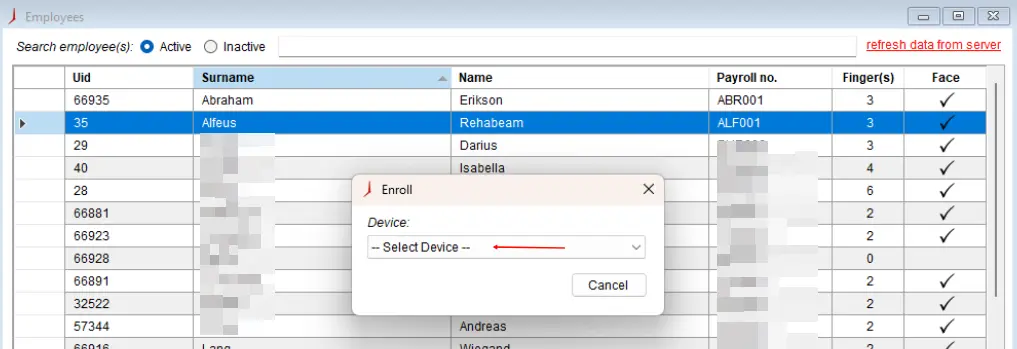
Step 3: The list of employees on the client's profile will appear as per the below screen.

Step 4: Clicking on the name of the employee for whom you wish to initiate enrollment will display the below pop up box.
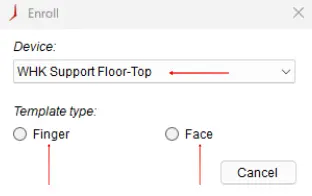
Step 5: Select the device on which enrollment is to be initiated from the drop down device menu and select the template type as indicated below.
Step 6: Once selected, the window will confirm your employee selection, name, surname, payroll number and the enrollment type you've selected. Proceed to "Start enrollment"
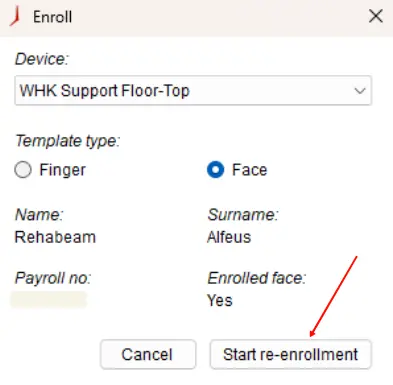
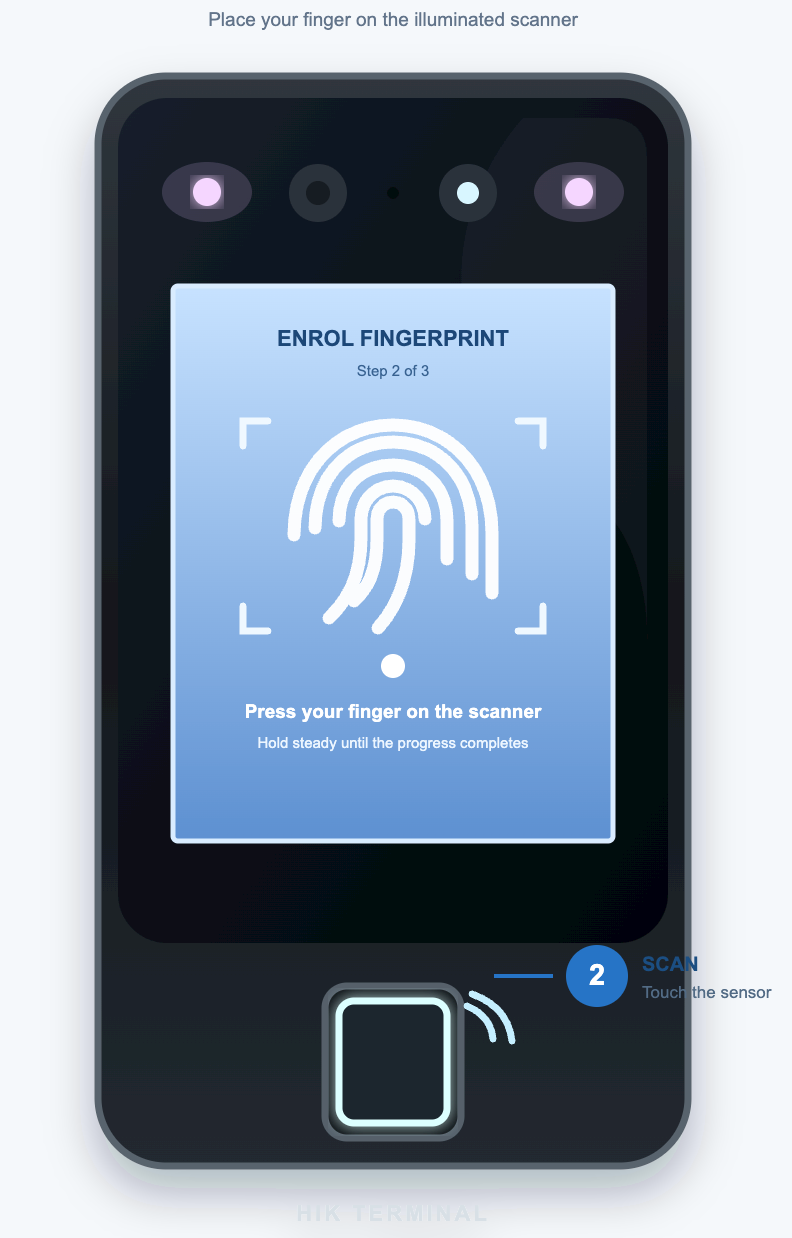
Step 7: Once the "Start enrollment/re-enrollment" is initiated, the employee should go to the device to either enroll their face or finger template. In the example below, the finger template enrollment was initiated.
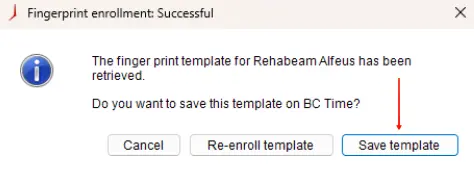
Step 8: Once the template is successfully captured. The below message will display on the enrollment application. Proceed to save the template.
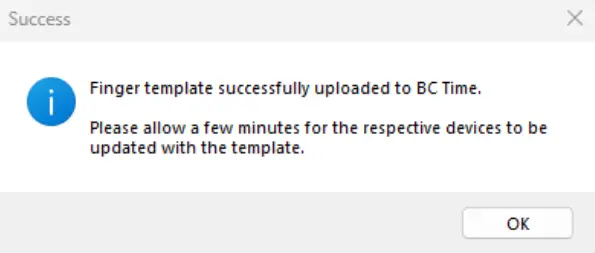
Step 9: The application will confirm successful upload of template to BC Time.
There are no comments for now.
to be the first to leave a comment.