Setting of employment date
Employment date
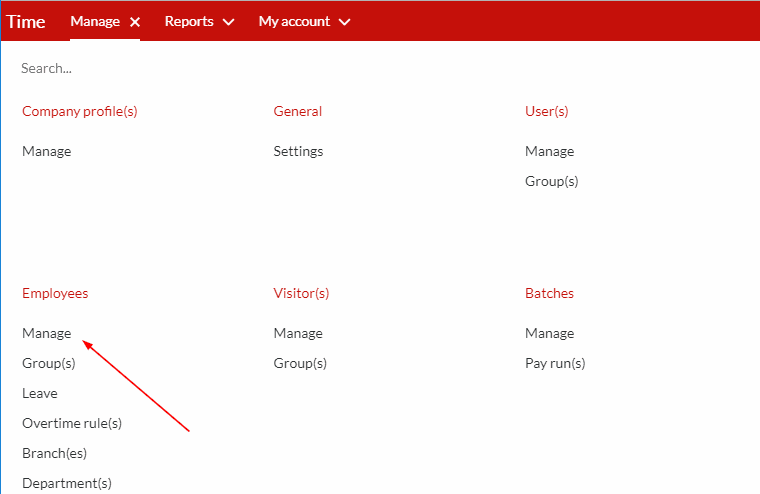
Step 1. Once logged into the system, go to Manage and click on Manage under Employees.
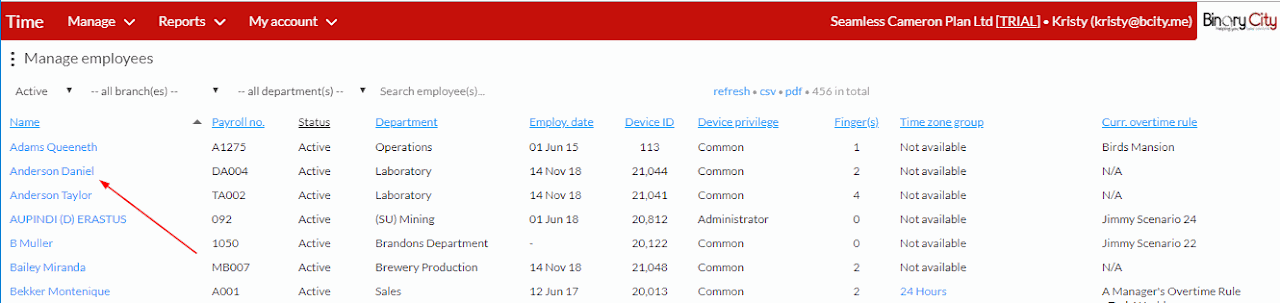
Step 2. Click on the employee name whose employment date you would like to set up, as indicated in the screenshot below.
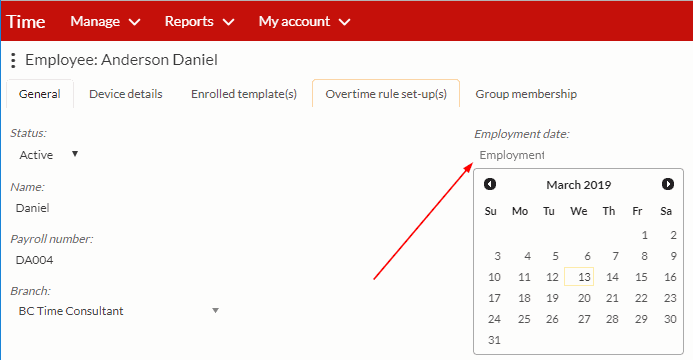
Step 3. As indicated in the screenshot below, insert the correct date under the employment date field.
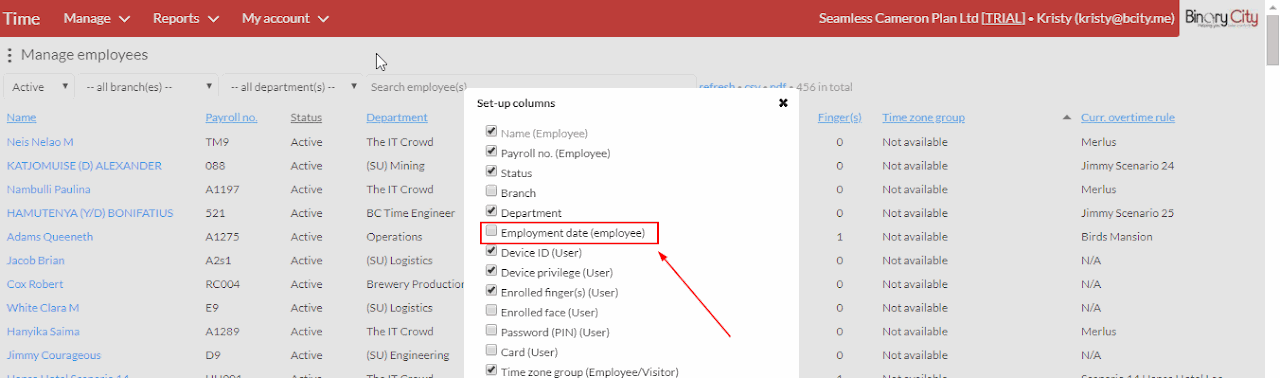
Step 4. If you wish to see the list of employees with the employment date included, rest your mouse cursor over any of the headings above the list of employees, the 'change' button will appear on the right as part of the headings, click on change to get the list of columns (see screenshot below)

Step 5. From the list of available columns, simply tick the 'Employment date (employee)' column and save.
Once saved, you'll see the new column added to your list of employees.
Nenhum comentário até agora.